Lobbies vs Sessions EOS, et comment ajouter le Matchmaking
Les lobbys EOS créent des groupes de joueurs persistants et en temps réel conçus pour les jeux en peer-to-peer, tandis que les sessions agissent comme des conteneurs logiques légers sans fonctionnalités intégrées.
Les lobbys incluent le chat vocal, la migration d'hôte et les contrôles de propriétaire, mais ne peuvent pas prendre en charge directement les serveurs dédiés et manquent donc de leur sécurité – à moins d'être combinés avec l'orchestration d'Edgegap.
Les sessions peuvent lancer des serveurs dédiés sans nécessiter d'hôte joueur, mais ne disposent pas des fonctionnalités plus riches présentes dans les lobbys.
En utilisant le Matchmaking de Edgegap, les développeurs peuvent associer les lobbys EOS à des serveurs dédiés, permettant un matchmaking basé sur la latence, le niveau, la région ou des attributs personnalisés (ce dont le matchmaking d'EOS est dépourvu). L'ajout de serveurs dédiés garantit la sécurité des joueurs et la protection contre les tricheurs et les pirates.
Un flux d'intégration complet existe (c'est-à-dire l'authentification, la création de lobby, la formation de groupe, le matchmaking, le déploiement, le backfill et l'arrêt de match) permettant aux développeurs de gérer des sessions multijoueurs évolutives et sécurisées avec EOS + Edgegap.
Les lobbies des Epic Online Services ("EOS") sont la solution d'Epic Games pour créer une connexion persistante entre les joueurs afin de partager "l'état du joueur" avec des mises à jour en temps réel.
Spécifiquement dans le contexte de l'architecture des jeux multijoueurs, les lobbies sont utilisés pour regrouper les joueurs avant de déployer un serveur de jeu traditionnellement hébergé par un joueur (c'est-à-dire peer-to-peer, souvent surnommé "P2P"). Les serveurs hébergés par des joueurs sont prouvés pour introduire des problèmes avec les tricheurs et les hackers.
En termes de flux des utilisateurs, cela fonctionne comme suit :
D'abord, les joueurs doivent créer un lobby, ce qui en fait à la fois le premier membre et le propriétaire du lobby.
Ensuite, le joueur (ou le jeu) rend le lobby "disponible" pour que d'autres joueurs le rejoignent. Il peut être rendu "joignable" soit par :
Un système d'invitation directe ou ;
Le plus souvent, "découvrable" via une fonctionnalité de navigateur de serveur.
EOS est principalement utilisé comme la principale solution backend pour Unreal Engine, comme Unreal Engine 5, dont l'intégration est disponible dans sa documentation.
-> Traditionnellement, les lobbies EOS ne peuvent pas être utilisés pour des serveurs dédiés.
Heureusement, la plateforme d'Edgegap offre la possibilité d'utiliser les lobbies EOS avec le matchmaking basé sur la logique et des serveurs dédiés (voir ci-dessous comment faire).
Lobbies EOS vs Sessions
Souvent confondus l'un avec l'autre, EOS offre à la fois des "lobbies" et des "sessions". Ils sont similaires par nature et, pour ajouter à la confusion, partagent de nombreuses fonctionnalités.
Un aperçu complet des lobbies et des sessions est disponible dans la documentation EOS.
Comparaison Tête-à-Tête
La principale différence entre les lobbies et les sessions EOS est que :
Les sessions n'ont aucune fonctionnalité intégrée ; elles ne sont que la "logique" pour garder le compte des joueurs exact pour la session et empêche d'autres joueurs d'essayer de rejoindre la session lorsqu'elle est à capacité maximale. Les sessions sont gérées par le développeur et peuvent être utilisées pour déployer un serveur dédié sans aucun joueur présent.
Les lobbies ont des droits d'administration vocale, de migration de l'hôte et de gestion du propriétaire. Cependant, ils sont gérés via le backend EOS et ne peuvent être créés que par un joueur (ce qui les rend plus adaptés aux jeux hébergés par des joueurs).
Ainsi, bien que les lobbies soient plus adaptés aux jeux multijoueurs en réseau peer-to-peer, comme le note Epic Games, parfois le réseau d'un joueur est restrictif et ne permet pas à tout le trafic de passer à travers leur pare-feu. Cela peut parfois causer des problèmes de connexion réseau pour les joueurs dans les lobbies, ce qui va à l'encontre de l'utilisation prévue des lobbies.
Caractéristiques Partagées entre les Lobbies EOS et les Sessions
Les lobbies et les sessions partagent ces caractéristiques :
Attributs fixes et attributs utilisateur que vous pouvez remplir pour répondre au mieux aux besoins de votre jeu.
Les joueurs peuvent rechercher un lobby ou une session par les attributs fixes et les attributs utilisateur que vous avez marqués comme publics.
Les joueurs déjà dans le lobby ou la session peuvent inviter d'autres joueurs à les rejoindre.
Les joueurs peuvent rejoindre le lobby de présence ou la session de présence dans laquelle un ami se trouve.
Les joueurs peuvent rejoindre plusieurs lobbies et sessions en même temps.
Caractéristiques des Lobbies EOS
Intégration du chat vocal. Voir la communication vocale de Lobby EOS.
Migration de l'hôte : le propriétaire peut transférer la propriété lorsqu'il part ou si sa connexion tombe.
Administration du propriétaire : Le propriétaire peut retirer (expulser) des joueurs du lobby.
Caractéristiques des Sessions EOS
Aucune fonctionnalité supplémentaire n'est disponible dans les sessions au-delà des fonctionnalités partagées ci-dessus.
Quand Utiliser les Lobbies EOS
Utilisez un service de lobby si la conception de votre jeu nécessite de définir des préférences de matchmaking contrôlées par le joueur (par exemple, choix de personnage, difficulté, carte, etc.). Au fur et à mesure que les joueurs rejoignent et quittent le Lobby, ils mettent également à jour le groupe de matchmaking pour se préparer à trouver un match plus tard.
Voici les principaux facteurs de décision à considérer :
Conception de Jeu – Caractéristiques / Exigences | Lobby Pré-match (Lobbies EOS) | Matchmaking (avec Logique) |
|---|---|---|
Inviter des amis à jouer avec moi | ✓ | ✓ |
Modifier mes préférences joueur/match | ✓ | ✗ |
Voir les préférences des autres membres du lobby | ✓ | ✗ |
Enregistrer et gérer des données personnalisées clé-valeur | ✓ | ✗ |
Notifier les membres du groupe que le joueur est prêt à jouer | ✗ | ✓ |
Afficher la progression du matchmaking et trouver un match | ✗ | ✓ |
Obtenir une assignation d'équipe pour le joueur/groupe | ✗ | ✓ |
Récupérer les détails de connexion du serveur de jeu | ✗ | ✓ |
Lobbies EOS & Matchmaker d'Edgegap
Edgegap et EOS s'intègrent parfaitement pour offrir un ensemble de fonctionnalités riches pour jouer ensemble avec des amis en ligne.
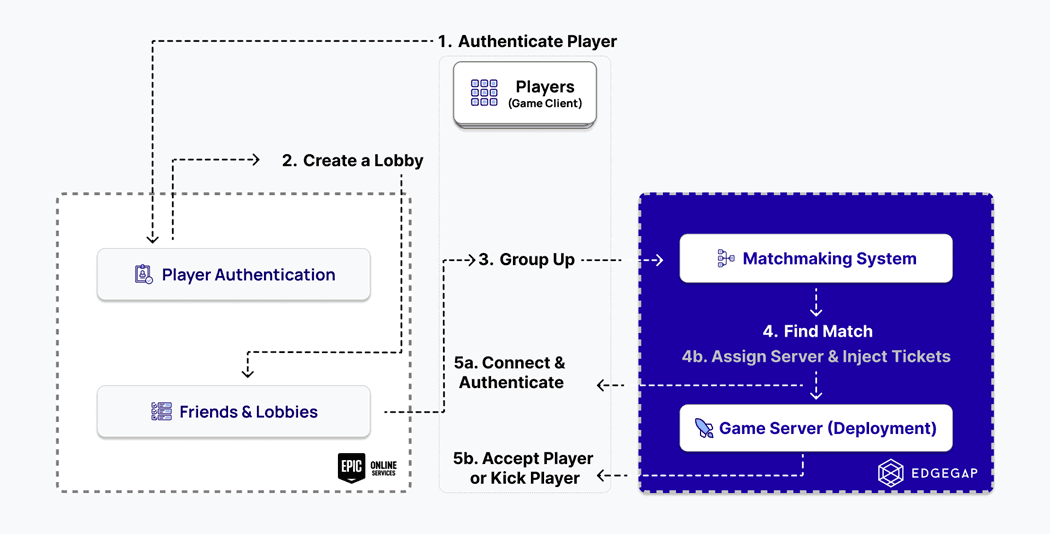
1. Prérequis d'Intégration : Authentification (Sécurité) & Liste d'Amis
Nous recommandons une authentification en trois couches pour une sécurité maximale :
Les clients s'authentifient avec le DRM des Epic Online Services pour empêcher le piratage,
Les clients s'authentifient avec le matchmaker d'Edgegap pour atténuer les attaques par force brute,
Les serveurs vérifient l'identité du client auprès des Epic Online Services pour empêcher l'usurpation d'identité.
Ensuite, utilisez l'interface des amis des Epic Online Services (EOS) pour récupérer, gérer et s'abonner aux événements relatifs à la liste d'amis d'un joueur connecté à votre jeu (ou utilisateur d'une application logicielle).
2. Lobbies EOS
En utilisant l'interface de lobby, vos joueurs peuvent créer, rejoindre, quitter et gérer des lobbies.
Le lobby et chaque membre peuvent avoir des attributs spécifiques à l'application, sous forme de paires clé-valeur, supportés par le type de données EOS_Lobby_Attribute. Ces attributs doivent être représentés par des données numériques, textuelles, ou booléennes. La structure de données EOS_Lobby_Attribute contient cette information. Les lobbies prennent également en charge des fonctionnalités adjacentes comme la migration de la propriété ou la VoIP de lobby.
Une fois que le lobby est assemblé et prêt pour le matchmaking, le propriétaire du lobby crée un Groupe dans le matchmaker d'Edgegap. Le propriétaire enregistre ensuite l'ID du Groupe retourné comme un EOS_Lobby_Attribute que les autres membres du lobby peuvent utiliser pour créer une adhésion et rejoindre le groupe.
Visualisez l'exemple officiel de lobby des Epic Online Services pour l'inspiration.
Alternative : Invitations Personnalisées d'Amis
Les lobbies sont-ils trop compliqués pour votre jeu ? Vous pouvez également utiliser les invitations personnalisées pour ajouter vos amis Epic directement dans le groupe de matchmaking, en incluant l'ID du Groupe dans votre invitation envoyée par le propriétaire du groupe. Chaque invité doit créer son adhésion au Groupe et télécharger ses attributs.
Vous pouvez passer à la recherche de match.
3. Matchmaking Edgegap
Le service de matchmaking d'Edgegap complète votre catalogue EOS en permettant aux joueurs de :
trouver d'autres joueurs en fonction de critères comme la région, la latence, le niveau de compétence, ou les paramètres de jeu ;
rechercher des serveurs à rejoindre en fonction de la capacité disponible [ou du ping, de la région, du niveau de compétence, de la carte, du mode] ;
démarrer un nouveau serveur si les serveurs existants sont pleins ou ne satisfont pas les critères des joueurs.
Trouver un Match
Chaque membre (et propriétaire) définit ses attributs de matchmaking lors de la création de son adhésion (ou groupe). Les attributs incluent généralement (mais pas exclusivement) des données de joueur comme :
mesure de la latence du beacon de ping - en utilisant les Beacons Ping d'Edgegap,
évaluation des compétences (ELO/MMR/bracket/league) - avec les Statistiques EOS,
drapeaux de modération (pools de tricheurs séparés) - avec les Sanctions EOS et les Rapports EOS,
mesures de progression - avec les Statistiques EOS,
préférences de carte - avec les Attributs de Membre du Lobby (voir ci-dessus),
difficulté de jeu sélectionnée (jeux coopératifs) - avec les Attributs de Lobby (voir ci-dessus).
Une fois que tous les joueurs ont configuré leurs adhésions et se sont marqués prêts dans le Groupe, le matchmaking commence automatiquement. Les joueurs reçoivent des mises à jour au fur et à mesure en consultant leur adhésion toutes les quelques secondes. Une fois le serveur assigné, les joueurs se connectent et commencent à jouer.
Remplacer les Départs
Fonctionnalité optionnelle
Utilisez le Backfill d'Edgegap pour demander l'ajout de joueurs supplémentaires dans un match en cours. Cela peut aider à réduire le coût de votre serveur (en raison d'un taux de remplissage de match plus élevé) et à améliorer l'expérience sociale (généralement préféré à jouer contre des bots).
Fin du Match
À la fin du match, utilisez les Epic Online Services pour télécharger les données de replay du match, ou télécharger une trace d'erreur avec les données de joueur EOS de votre serveur de jeu, ou mettez à jour vos statistiques EOS.
Téléchargez les données de trace et de log.
Si vous souhaitez trouver un nouveau match avec votre lobby actuel, créez simplement un nouveau groupe et recommencez depuis le début.
Intégration des Lobbies EOS – En Profondeur
Ce qui suit est le processus d'intégration étape par étape aux lobbies EOS en utilisant Edgegap depuis notre documentation. Assurez-vous d'utiliser cette version, car elle est mise à jour plus fréquemment.
Ce guide vous montrera comment intégrer Edgegap pour fonctionner avec les lobbies EOS dans votre projet de jeu Unreal Engine. Certaines étapes nécessiteront d'envoyer des requêtes à notre API à l'aide d'un jeton, et les commandes curl fournies ci-dessous vous permettront de prévisualiser chacune de leurs réponses pour que vous puissiez déterminer comment les gérer dans votre code. Lorsque vous utilisez le jeton dans vos requêtes, assurez-vous de conserver le mot-clé token.
Vous devrez également avoir une version d'application déjà configurée sur notre plateforme pour notre projet. Dans ce cas, nous recommandons d'utiliser le plugin Edgegap pour Unreal Engine pour aider à accélérer le processus de test. Pour plus d'informations sur le plugin, vous pouvez lire notre documentation ici.
Avertissement : En tant que mesure de sécurité, il n'est pas recommandé de permettre au propriétaire du lobby EOS d'envoyer des requêtes directement à l'API Edgegap dans un environnement de production, en raison du fait que le client a accès au jeton API. Vous devriez plutôt utiliser un service séparé pour gérer ces requêtes.
1. Obtenez et Stockez l'IP publique des joueurs
Pour commencer, chaque joueur qui rejoint un lobby - y compris le propriétaire du lobby - doit obtenir son IP publique et la stocker comme une propriété de membre de lobby.
curl --location --request GET 'https://api.edgegap.com/v1/ip' \
--header 'Authorization: [EDGEGAP_API_TOKEN]'
2. Créez un déploiement
Une fois que le propriétaire du lobby décide que le match est prêt à commencer, une requête doit être envoyée pour créer un nouveau déploiement sur Edgegap, en utilisant les IP publiques stockées.
curl --location --request POST 'https://api.edgegap.com/v1/deploy' \
--header 'Content-Type: application/json' \
--header 'Authorization: [EDGEGAP_API_TOKEN]' \
--data-raw '{
"app_name": "[EDGEGAP_APP_NAME]",
"version_name": "[EDGEGAP_APP_VERSION]",
"ip_list": [
"[LOBBY_MEMBER_IP]"
}'
Ensuite, le propriétaire du lobby devra continuer de consulter le déploiement, en utilisant l'id_request fourni dans la réponse de la demande de création de déploiement. Une fois la réponse ayant le statut_actuel du déploiement réglé sur PRÊT, le propriétaire du lobby devra définir les valeurs de l'IP et du port du déploiement comme propriétés de lobby EOS.
curl --location --request GET 'https://api.edgegap.com/v1/status/[REQUEST_ID]' \
--header 'Authorization: [EDGEGAP_API_TOKEN]'
3. Connectez-vous au déploiement
Quand les joueurs reçoivent la notification que les valeurs IP et port ont été assignées, ils peuvent les comparer au cache client puis les utiliser pour se connecter au serveur pour jouer le match.
4. Terminez le match et le déploiement
Une fois le match terminé, le propriétaire du lobby dé-règle les valeurs d'IP et de port des Propriétés de Lobby EOS, ce qui notifiera tout le monde de se déconnecter gracieusement du serveur. Si l'application a la configuration pour injecter des variables d'environnement, elles peuvent être utilisées pour terminer le déploiement de l'intérieur à ce moment-là.
Pour terminer le déploiement depuis l'extérieur du serveur, une requête comme la commande curl montrée ci-dessous peut être utilisée à la place.
curl --location --request DELETE 'https://api.edgegap.com/v1/stop/[REQUEST_ID]' \
--header 'Authorization: [EDGEGAP_API_TOKEN]'
Si les joueurs restent dans le lobby, le propriétaire du lobby peut alors répéter les étapes en commençant par demander un nouveau déploiement afin d'initier un nouveau match avec les mêmes personnes.
Écrit par
l'équipe Edgegap